- High-concerned chemical: None
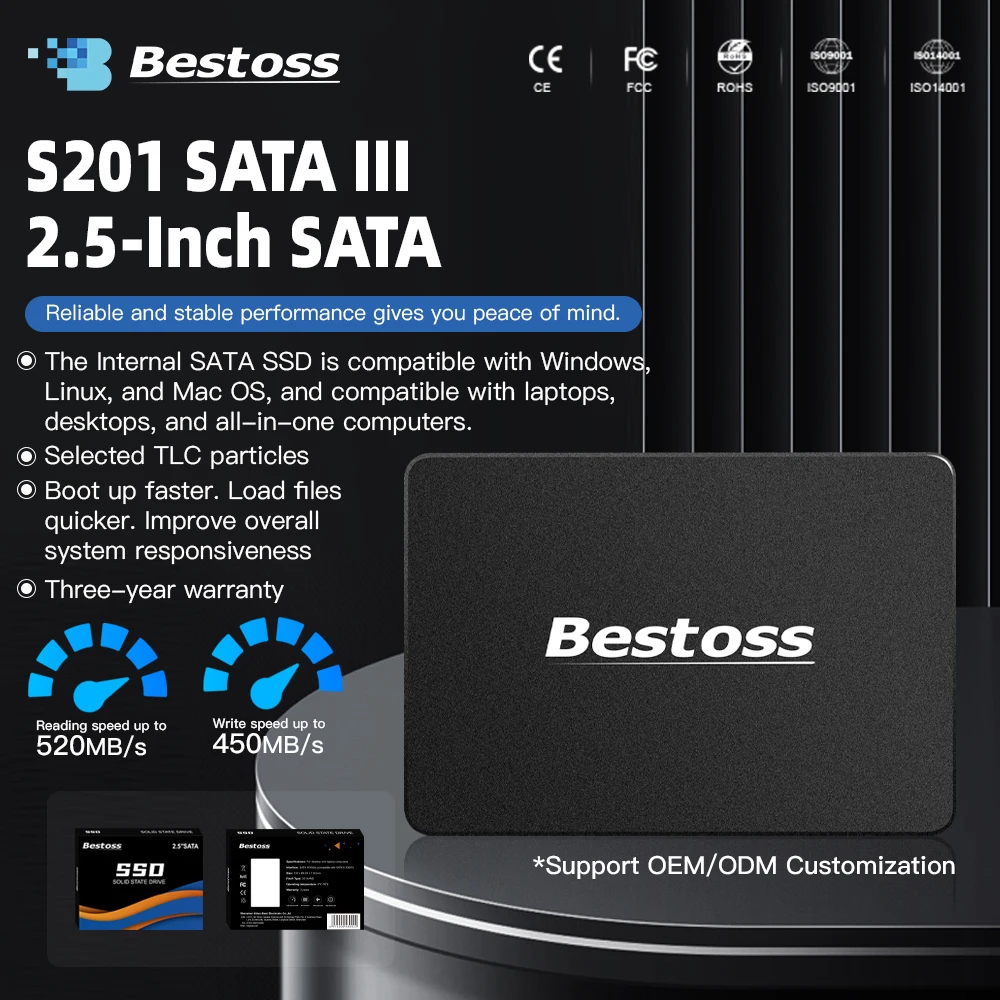
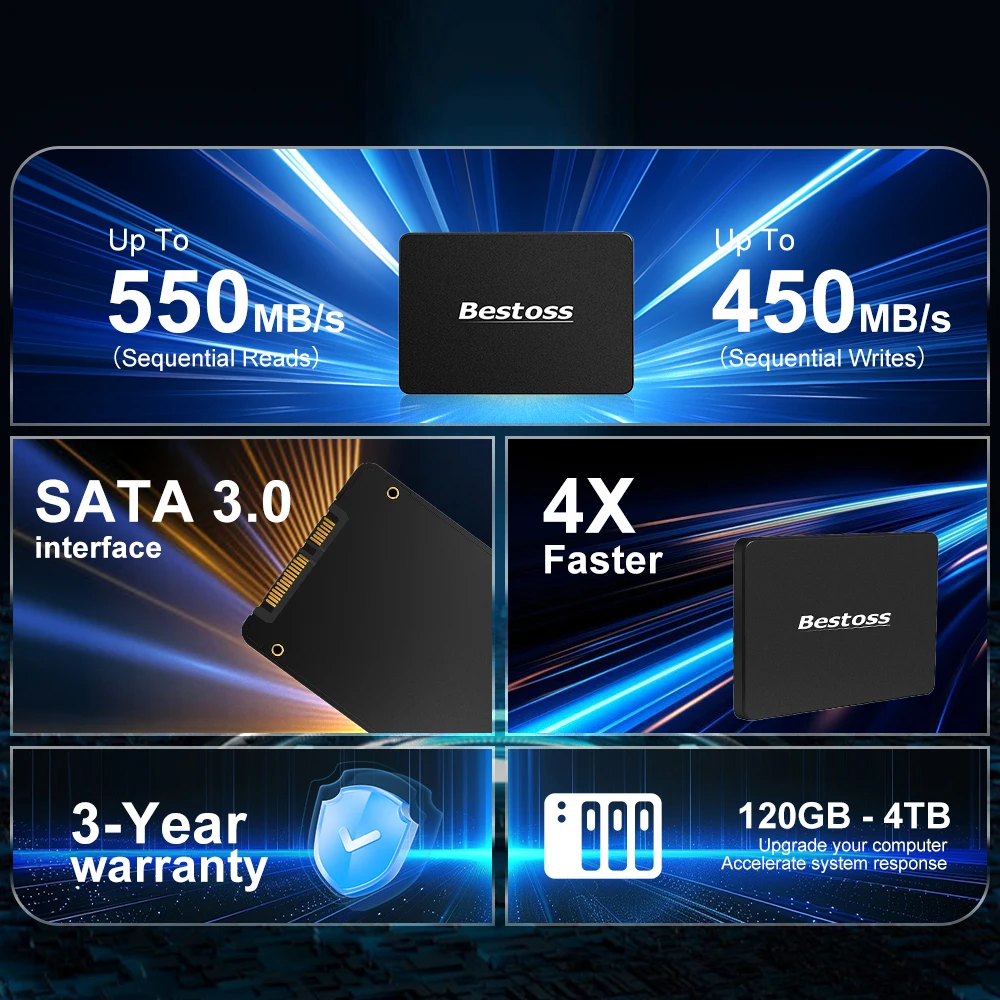
- Max Sequential Write: 450Mbps
- Max Sequential Read: 530Mbps
- Transport Protocol: AHCI
- Bus Type: SATA III
- Cache: None
- RGB: No
- Cooling Fin: No
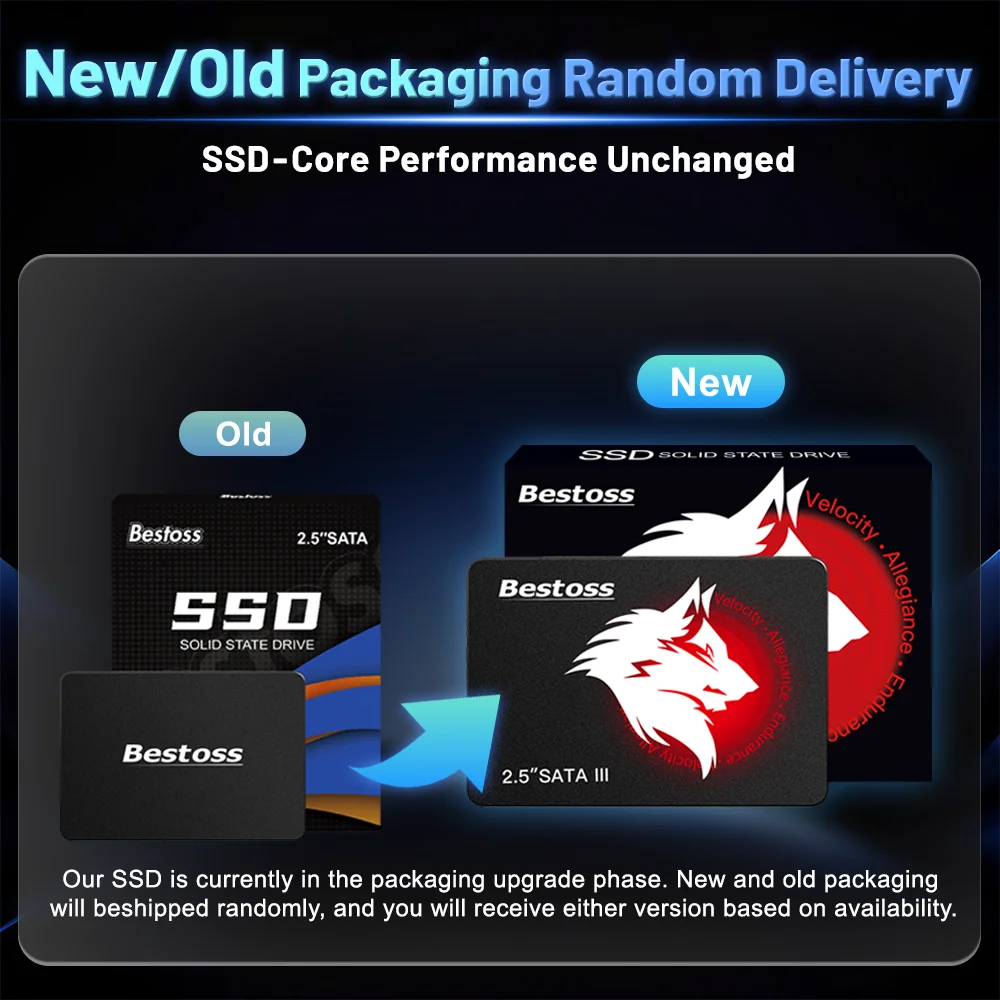
- Package: Yes
- Nand Flash Type: QLC
- Controller: Other
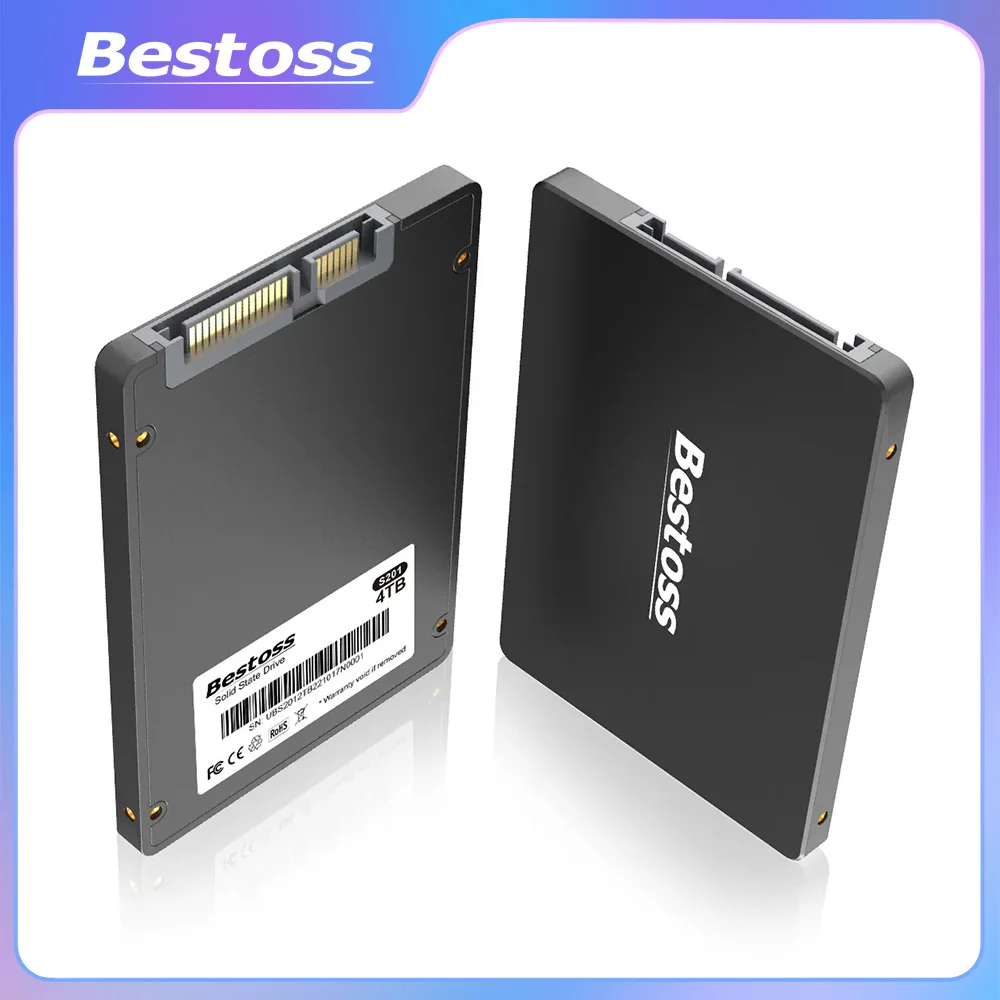
- Size: 2.5"
- Interface Type: SATA
- Application: Desktop,Laptop
- Brand Name: Bestoss
- Origin: Mainland China
- Type: Internal
- Style: SSD
- Certification: CE,FCC,RoHS
Note to buyers:
✬All products are 100% original brand products from our Bestoss factory.
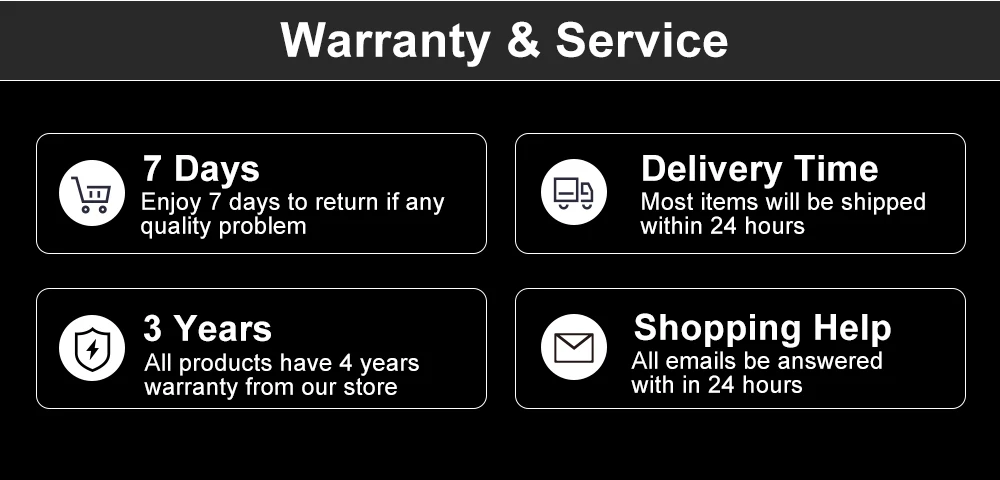
✬We provide a 3year warranty for the product. During this period, if the product itself fails (not caused by human damage or water),you can contact us for a free replacement.
✬Our speed test on specific configuration Desktop,sataIII interface , sataIII cable,without operation system.Test Result just for reference .SATA3.0 SSD tested on sata2.0 interface and sata2.0 cable ,speed will lower than 300MB/S.Laptop will lower than Desktop and unstable.
✬This product is a new disk, please format the disk before use.
✬The Manufacturer is using Flash memory decimal arithmetic: 1 MB = 1000KB, 1G = 1000 MB Calculated, and the operating system is using binary arithmetic: 1 MB = 1024KB, 1 GB = 1024 MB; So there are some differences between display capacity and nominal capacity of flash memory products (around 5~7% less).
✬Nand Flash Type:TLC/QLC, Randomly send according to the shipment batch.

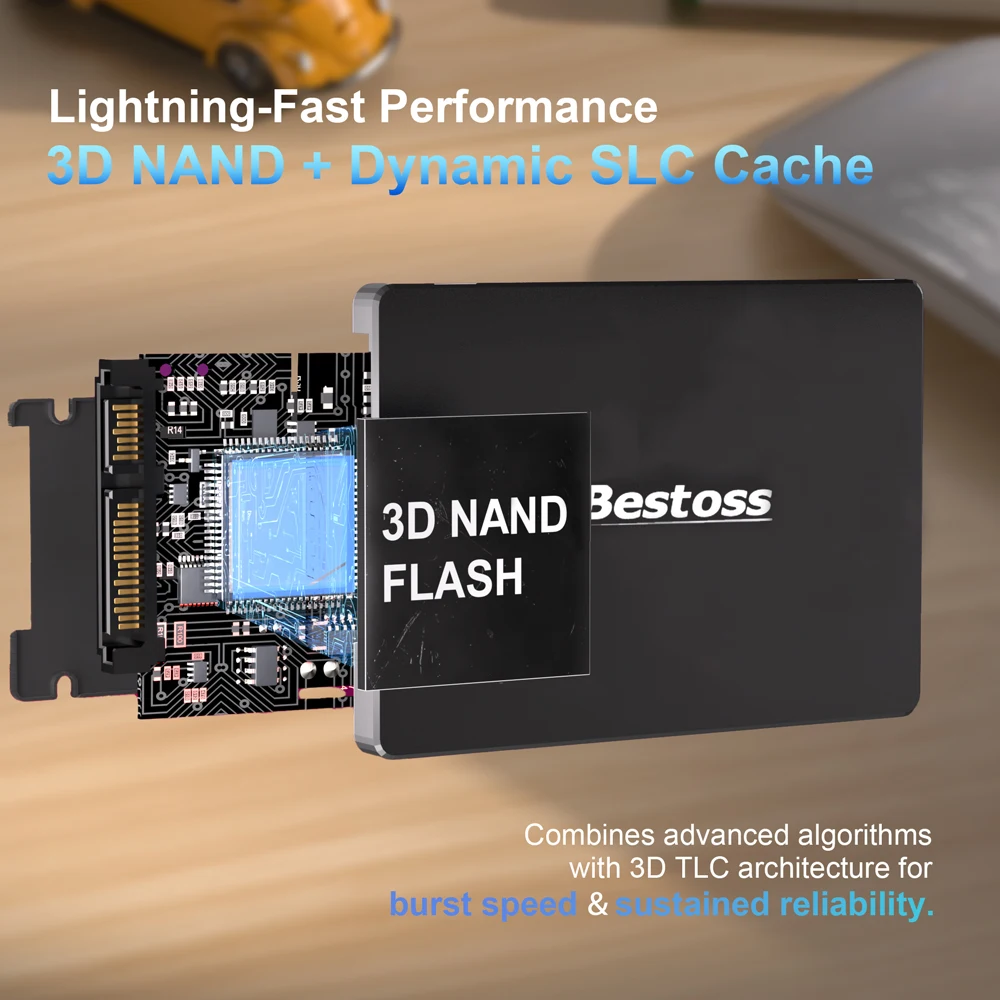
1. Bestoss SSD High-quality TLC/QLC flash, combined with industry- leading high-quality controller.
2. 7mm plastic case, easy to install in desktop laptop computers.
3. Suitable for desktops,notebooks and other commercial PC
4. The shock-proof, durable, and extremely reliable SSD represents the absolute best quality in the field.
5. Read Speed (MAX): 500+ MB/s; Write Speed (MAX): 450+ MB/s.
6.3-year limited warranty.
Strict Quality Control :
1.We are professional SSD、DDR manufacturer with 18 years of Production experience.
2.We focus on every detail of product production.
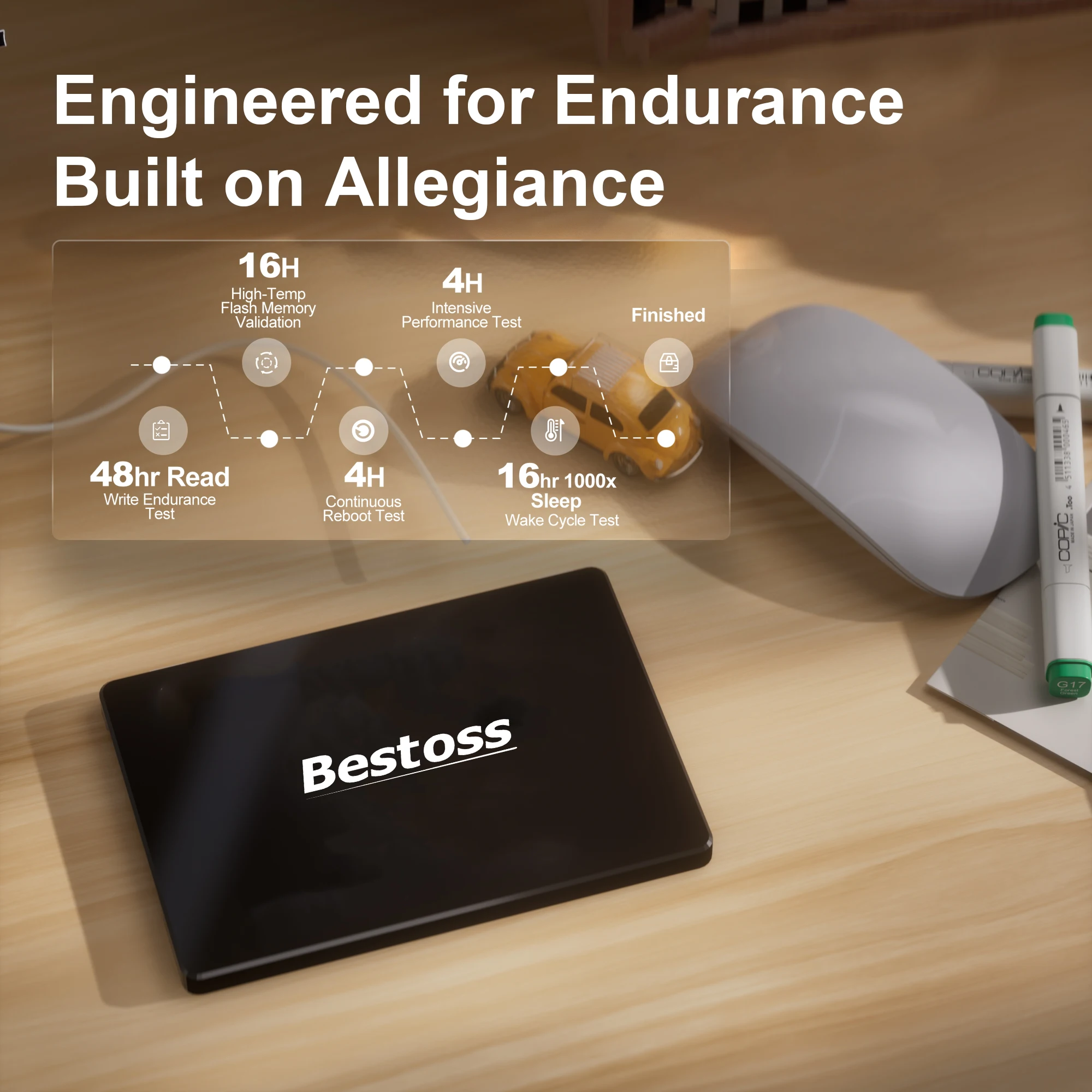
3.Every product will undergo rigorous testing one by one before leaving the factory.
Before you use:
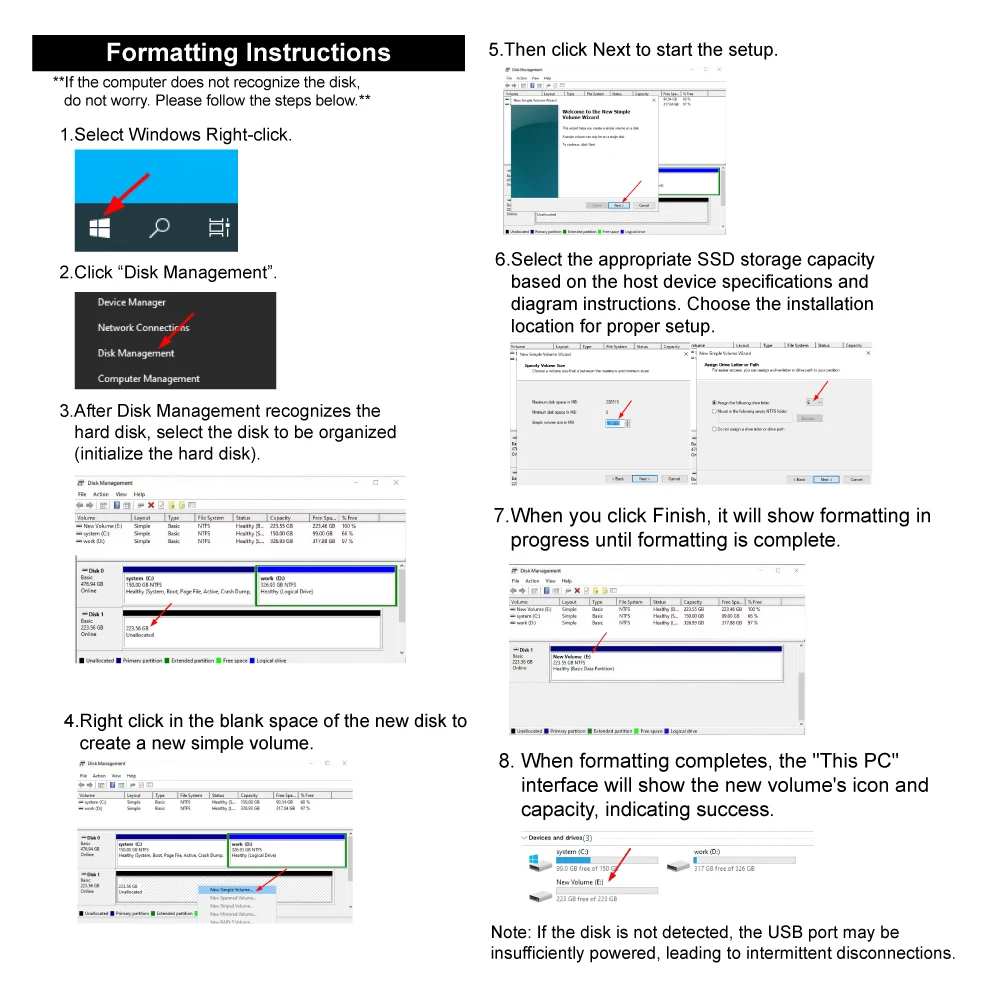
For new SSD, please finish disk initialization according to the following steps.
1. Open Start. Search for "Create and format hard disk partitions" and click the top result to open the Disk Management console.
2. Right click "Computer" – "Manage" – "Disk Management".
Find your unallocated disk, right click "Unallocated", and choose "New Simple Volume Wizard". So then your SSD can be detected.


 Smart watches wood edition
$599.00 + Shipping Charge
Smart watches wood edition
$599.00 + Shipping Charge
 iPhone dock
$49.00 + Shipping Charge
iPhone dock
$49.00 + Shipping Charge
 Ornare auctor
$429.00 + Shipping Charge
Ornare auctor
$429.00 + Shipping Charge
 Henectus tincidunt
$22.00 + Shipping Charge
Henectus tincidunt
$22.00 + Shipping Charge






























Reviews
There are no reviews yet.